 Warden VPN

The core
The engine that carries your traffic. Different networks let different engines through. Warden tries what your current network actually allows and settles on the one that connects.
Coming soon to iOS
Warden picks the core, the transport and the location for the network you are on right now. Your part is one tap: Connect.
Coming soon to the App Store
No account to configure. No protocol to choose.
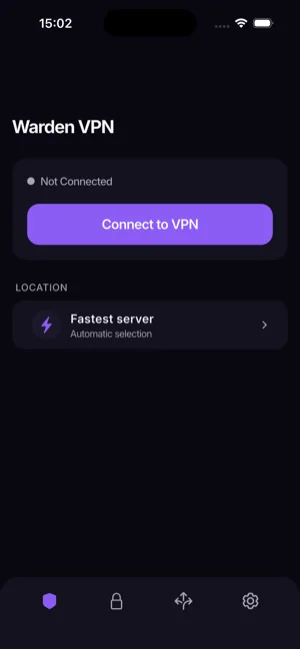
Most VPNs hand you a menu of protocols, ports and servers and assume you know which combination works on your network today. Warden works that out in seconds, and keeps working it out.
The engine that carries your traffic. Different networks let different engines through. Warden tries what your current network actually allows and settles on the one that connects.
How that traffic is shaped as it leaves your device. A network that refuses one shape will often accept another. Warden finds the one that gets through where you are.
The country you come out in. By default Warden takes the fastest server available to you. Prefer a particular country? Pick it yourself and save it to favourites.
And it does not stop there. Networks change through the day — home Wi-Fi in the morning, mobile data on the way out, a café hotspot at lunch. Warden keeps adjusting during the session, instead of dropping you back to a settings screen to guess again.
Every setting a typical VPN asks you to understand is a decision Warden has already made.
A typical VPN
An illustration of a conventional VPN settings screen listing eight options a person is expected to configure before connecting.
Eight decisions before anything happens.
Warden
Not connected
One decision, and it is not really yours to make.
Manual settings still exist. If you want to pick a country, route a specific site outside the tunnel or turn on auto-connect, all of it is there. It is simply never the price of getting online.
Warden supports the protocols that still work on restrictive networks, and moves between them on its own. You never have to know which one is in use — though the app will tell you if you ask.
32+
countries with available servers
Let Warden take the fastest one, or choose a country and keep it in favourites.
The wording below is the same wording used in our Privacy Policy. If the two ever disagree, the policy is the one that counts.
Your internet activity is not tracked, not logged and not stored.
It is used only to approximate your location and pick a server, and it is deleted when the session ends.
Connection status, speed and latency — the readings the automatic selection needs, and nothing tied to what you do online.
Browsing history and activity inside the VPN tunnel are never collected in the first place.
Protection starts as soon as your device joins a network.
Send chosen sites straight out, past the tunnel.
Live traffic, session time and latency while you are connected.
Pin the countries you use and switch between them in one tap.
The interface follows your device language.
In the app or by e-mail, from the people who build it.
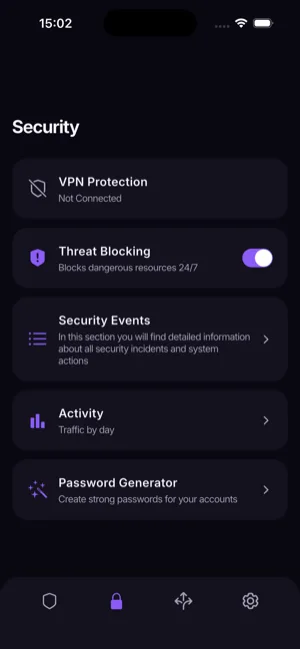
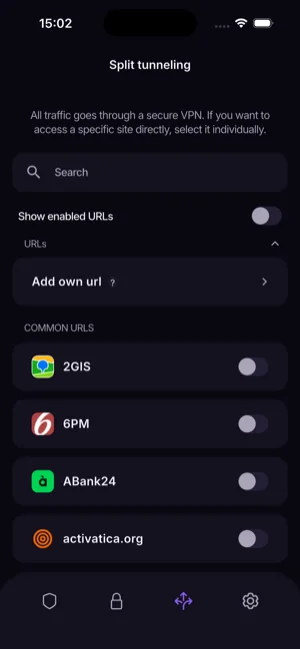
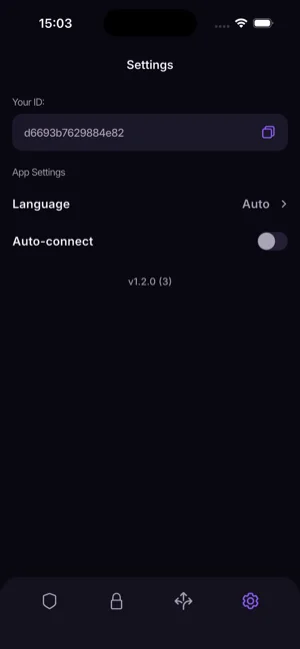
One button when it lands. Nothing to set up before or after.
Coming soon to the App Store